How it works
It stays out of the way until you hold the keys.
The flow

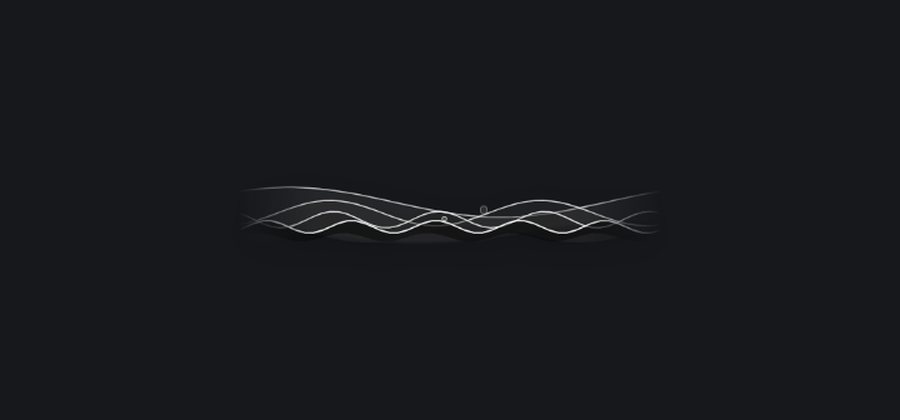
Idle. A small bar sits on your screen. 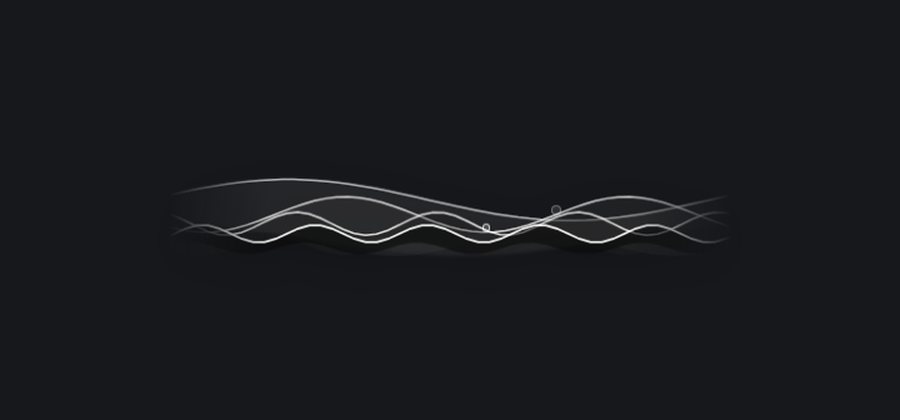
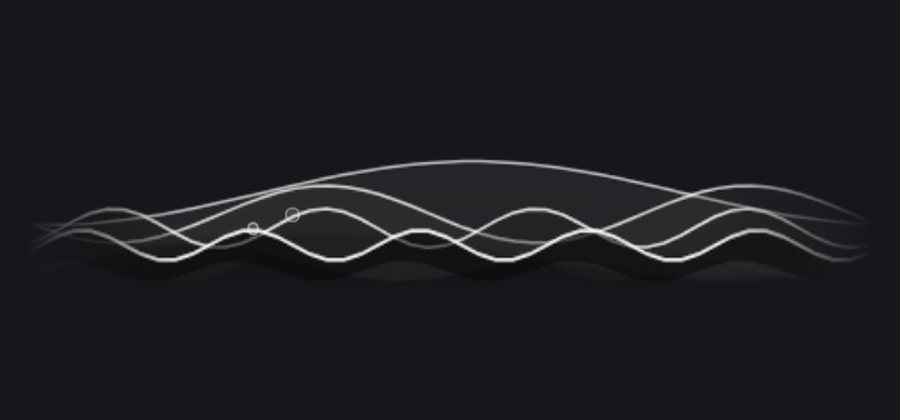
Hold Ctrl+Win (Ctrl+Option on a Mac). The waves move with your voice. 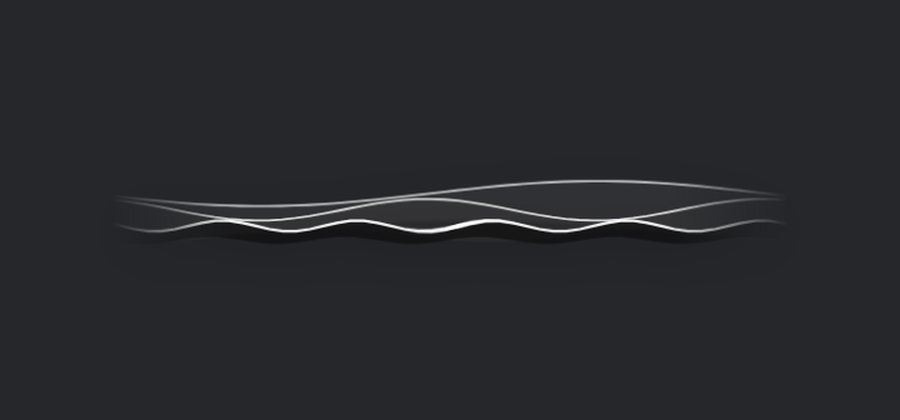
Let go. Your text appears wherever your cursor is.
Hands-free: press Ctrl+Win+Space, or double-tap Ctrl+Win, and talk without holding anything. Press it again, or click the tick on the bar, to finish. A recording stops by itself after 5 minutes.
The first time you open it
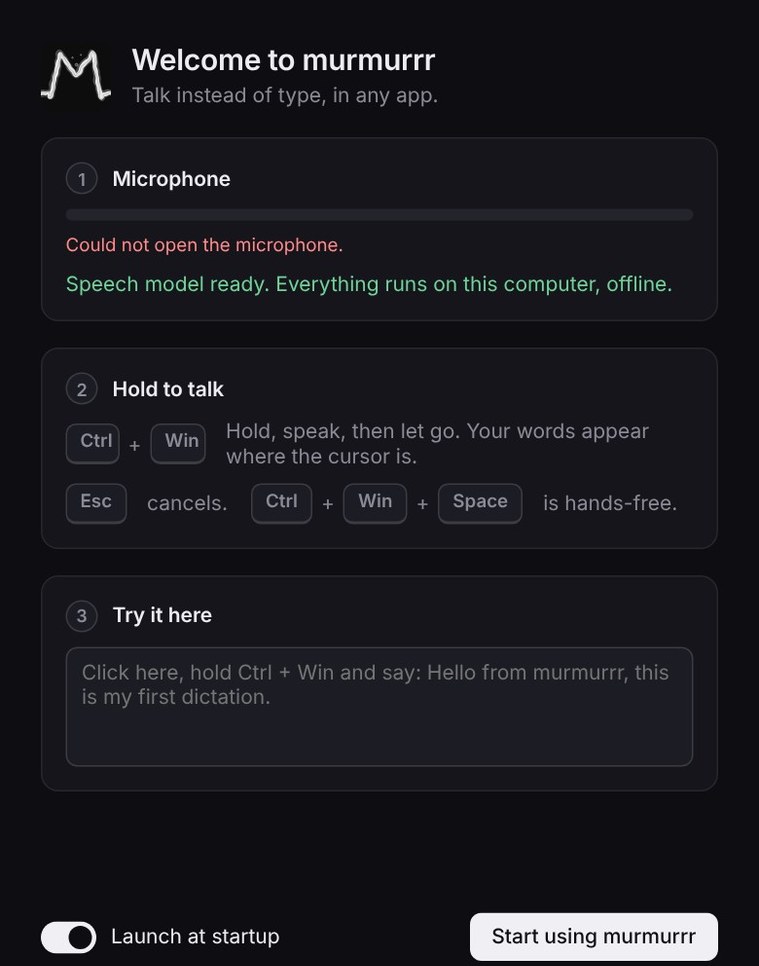
A welcome window checks your microphone, shows you the keys and gives you somewhere to try it. The speech model downloads in the background.
Customise it
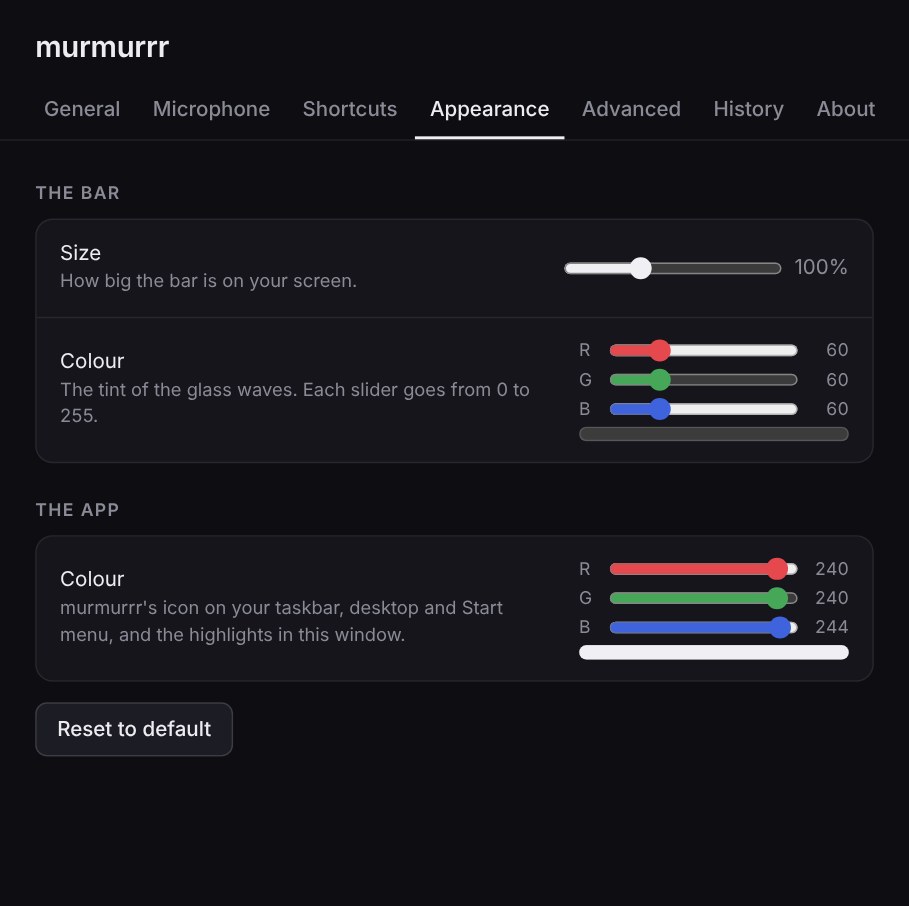
Everything on the Appearance tab changes as you move the slider, so you can see it straight away. Reset to default puts it all back.
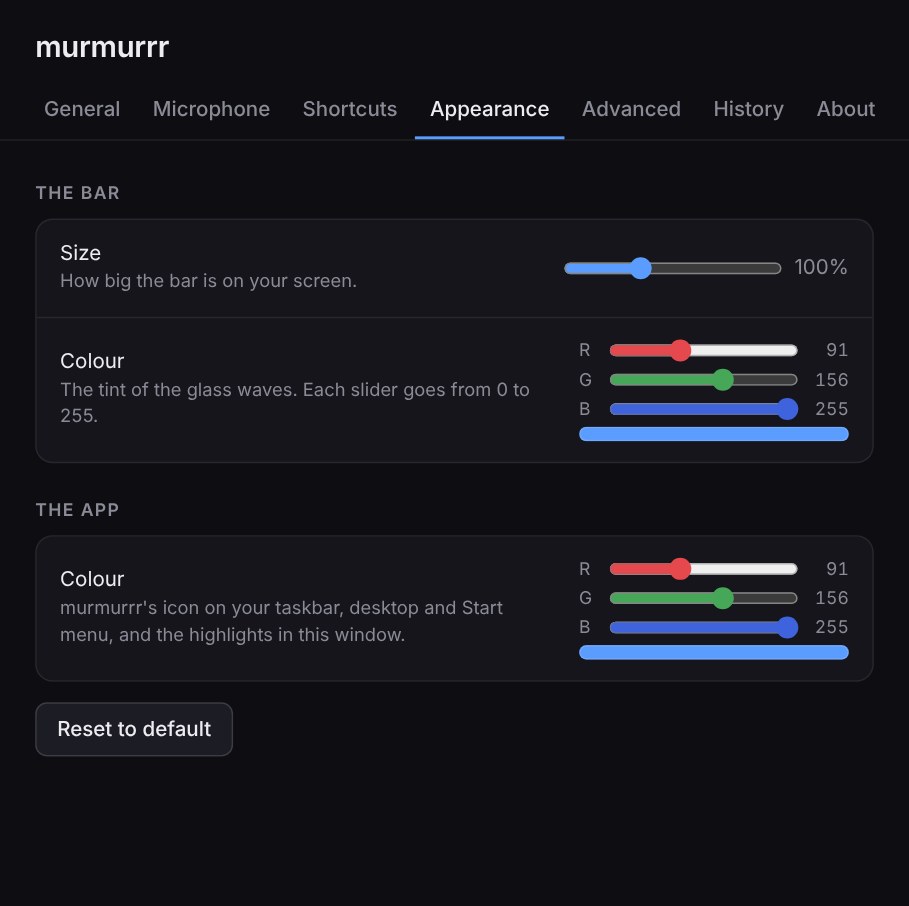
Bar colour
Red, green and blue sliders, from 0 to 255. These tint the glass waves.

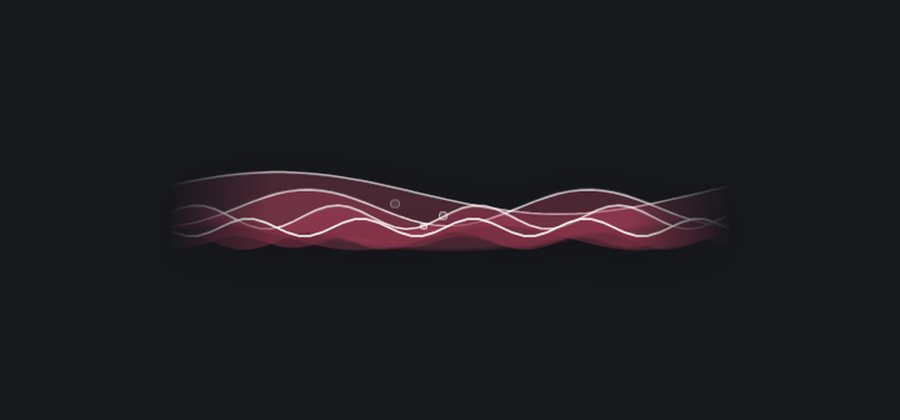
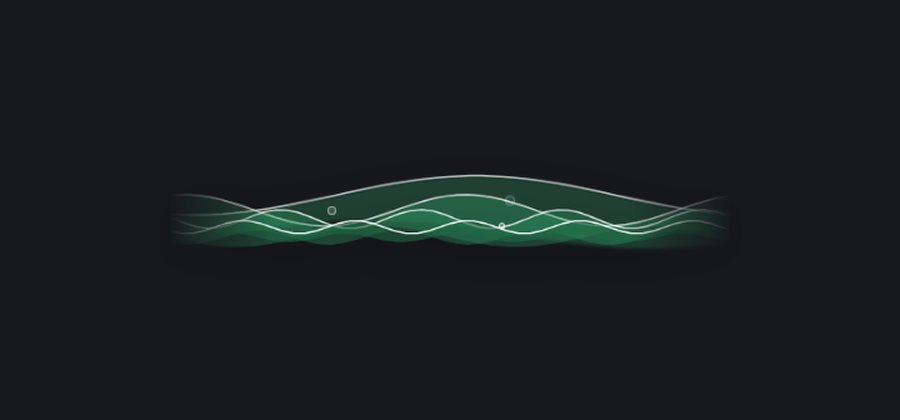
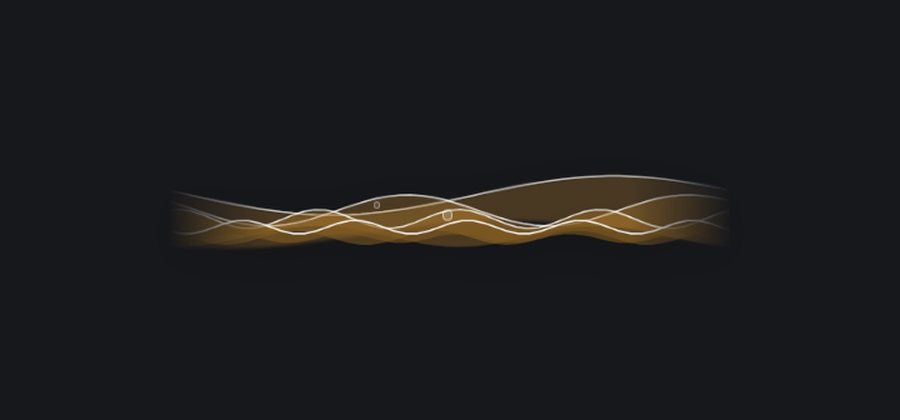
Bar size
From 75% to 150%.
App colour
murmrrr's icon on your taskbar, desktop and Start menu (the menu bar on a Mac), and the highlights in its windows.
Where the bar sits
Drag it to any of eight spots on any screen, or press F8 to send it to the next screen. Shift+F8 goes back, and Alt+F8 (Option+F8 on a Mac) tries its next spot on this screen.
Your words
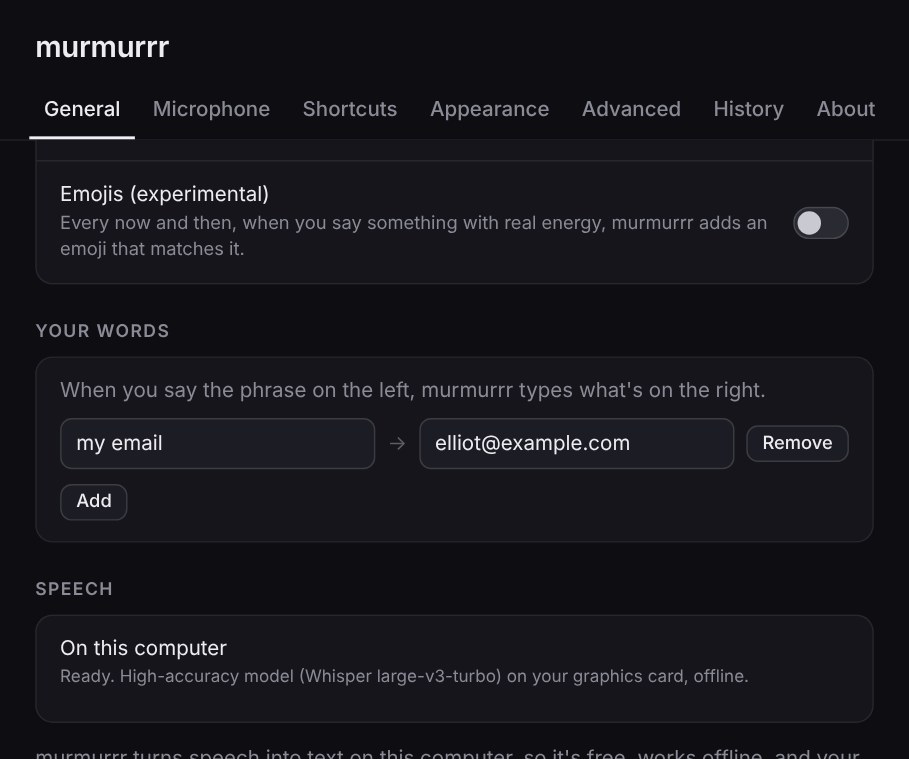
On the General tab, click Add, then fill in the two boxes: what you'll say on the left, and what murmrrr should type on the right. It matches whole words or phrases, in any case.
Now "send it to my email" comes out as "send it to [email protected]". It helps with names too: what's on the right is passed to the speech model as a hint.
When there is nowhere to type
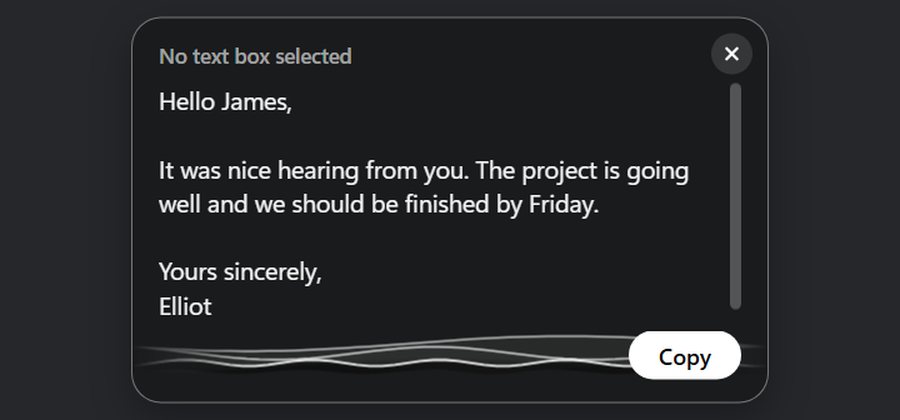
If the cursor isn't in a text box, the bar opens up and offers your words to copy, with an X to close it. It waits 5 seconds, and longer if your mouse is over it. They're in History either way.
Shortcuts
| What | Windows | Mac |
|---|---|---|
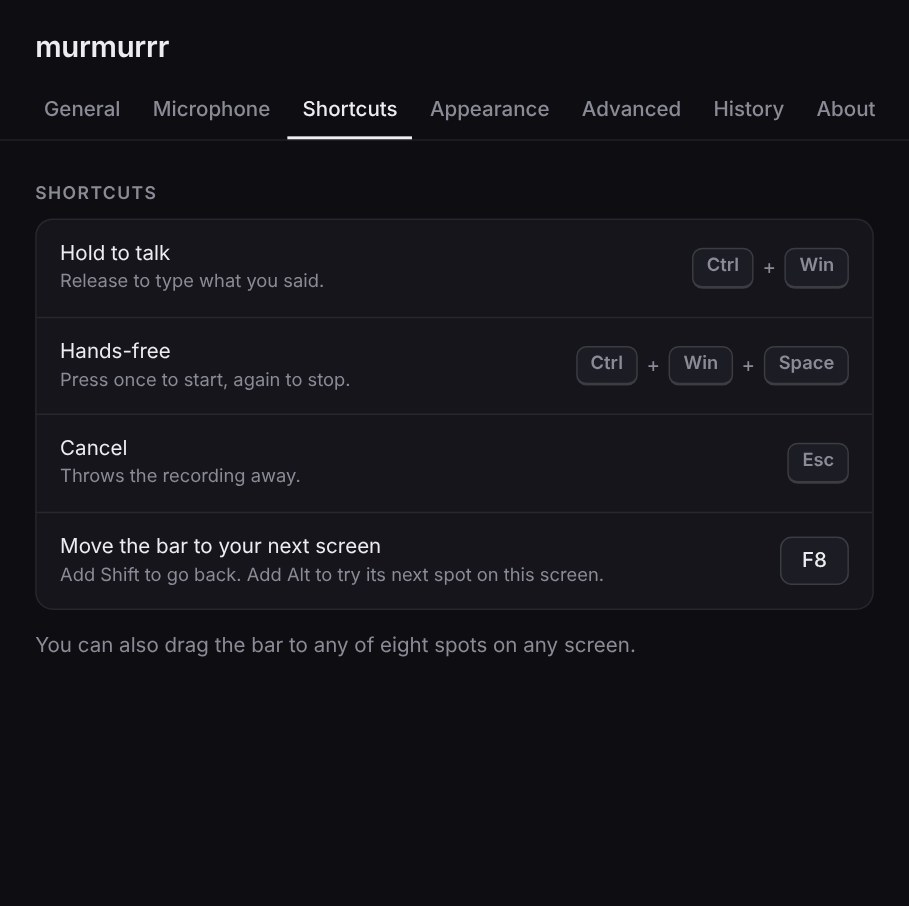
| Hold to talk | Ctrl + Win | Ctrl + Option |
| Hands-free | Ctrl + Win + Space | Ctrl + Option + Space |
| Cancel | Esc | Esc |
| Move the bar to your next screen | F8, or a key you choose | F8, or a key you choose |
| Move it back a screen | Shift + F8 | Shift + F8 |
| Its next spot on this screen | Alt + F8 | Option + F8 |
Every setting
Grouped the same way as the tabs in the app. Open one to see what's in it.
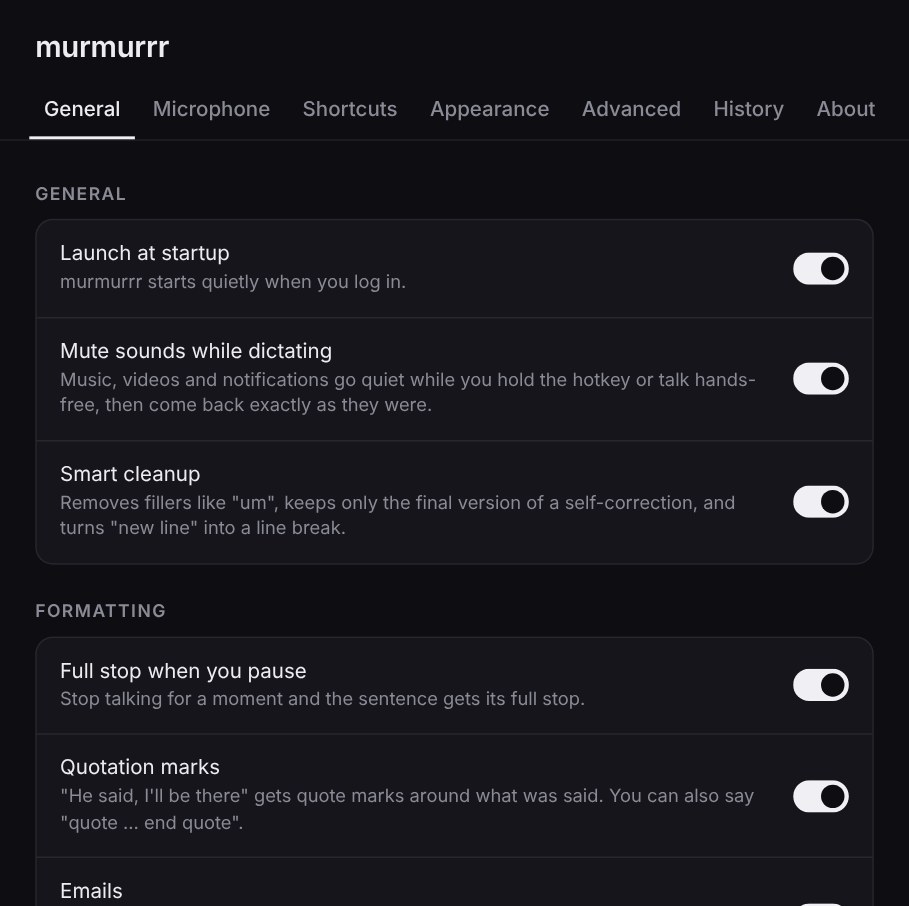
General
| Setting | What it does | Default |
|---|---|---|
| Launch at startup | murmrrr starts quietly when you log in. | On |
| Smart cleanup | Removes fillers like "um", keeps only the final version of a self-correction, and turns "new line" into a line break. | On |
| Full stop when you pause | Stop talking for a moment and the sentence gets its full stop. | On |
| Quotation marks | "He said, I'll be there" gets quote marks around what was said. You can also say "quote ... end quote". | On |
| Emails | Start with "Hi Sarah" or "Dear Mr Smith", or say "new email". Gets a greeting and paragraphs, and "Dear" makes it formal. A sign-off only goes in if you say one. | On |
| Lists | "I need eggs, milk and bread" becomes a list, and "first ... second ..." a numbered one. Say "bullet point" for bullets. | On |
| Casual spelling | going to → gonna, want to → wanna, got to → gotta, kind of → kinda, let me → lemme. | On |
| Emojis (experimental) | Every now and then, when you say something with real energy, murmrrr adds an emoji that matches it. Worked out on your computer from your own loudness and pitch. At most one a sentence and two a dictation, and never in formal emails, lists, code editors or terminals. | Off |
| Your words | When you say the phrase on the left, murmrrr types what's on the right. | Empty |
| Speech | Shows which speech model is running, and any download in progress. | Display only |
| Close murmrrr | Stops it completely, the bar included, until you open it again. It's in the tray menu too. The X on the settings window only closes the window. | Button |
Microphone
| Setting | What it does | Default |
|---|---|---|
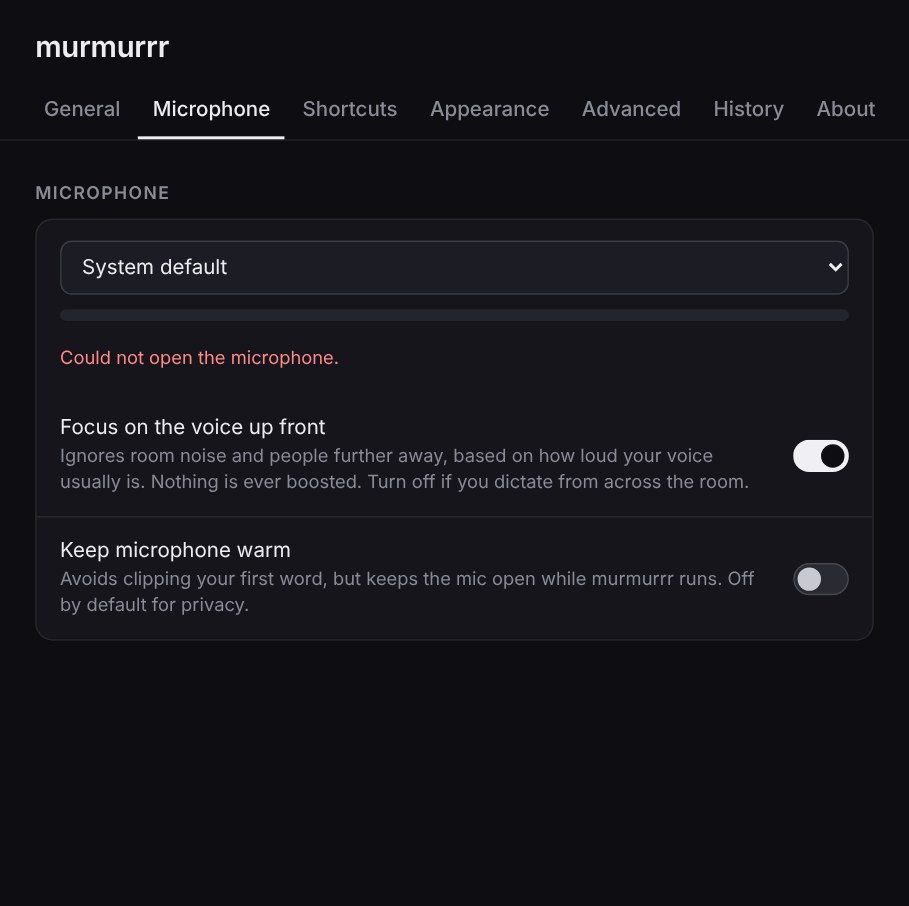
| Microphone | Which mic to use, with a level meter. The mic is only open for the meter while this tab is showing. | System default |
| Focus on the voice up front | Ignores room noise and people further away, based on how loud your voice usually is. Nothing is ever boosted. Turn it off if you dictate from across the room. | On |
| Keep microphone warm | Avoids clipping your first word, but keeps the mic open while murmrrr runs. | Off |
Shortcuts
| Setting | What it does | Default |
|---|---|---|
| Move the bar to your next screen | Click it, then press a new key. The other shortcuts are fixed. | F8 |
Appearance
| Setting | What it does | Default |
|---|---|---|
| Bar size | How big the bar is on your screen, from 75% to 150%. | 100% |
| Bar colour | The tint of the glass waves. Red, green and blue sliders, each from 0 to 255. | Standard greys |
| App colour | murmrrr's icon on your taskbar, desktop and Start menu (the menu bar on a Mac), and the highlights in its windows. | Standard |
| Reset to default | Puts the size and both colours back. | Button |
Advanced
| Setting | What it does | Default |
|---|---|---|
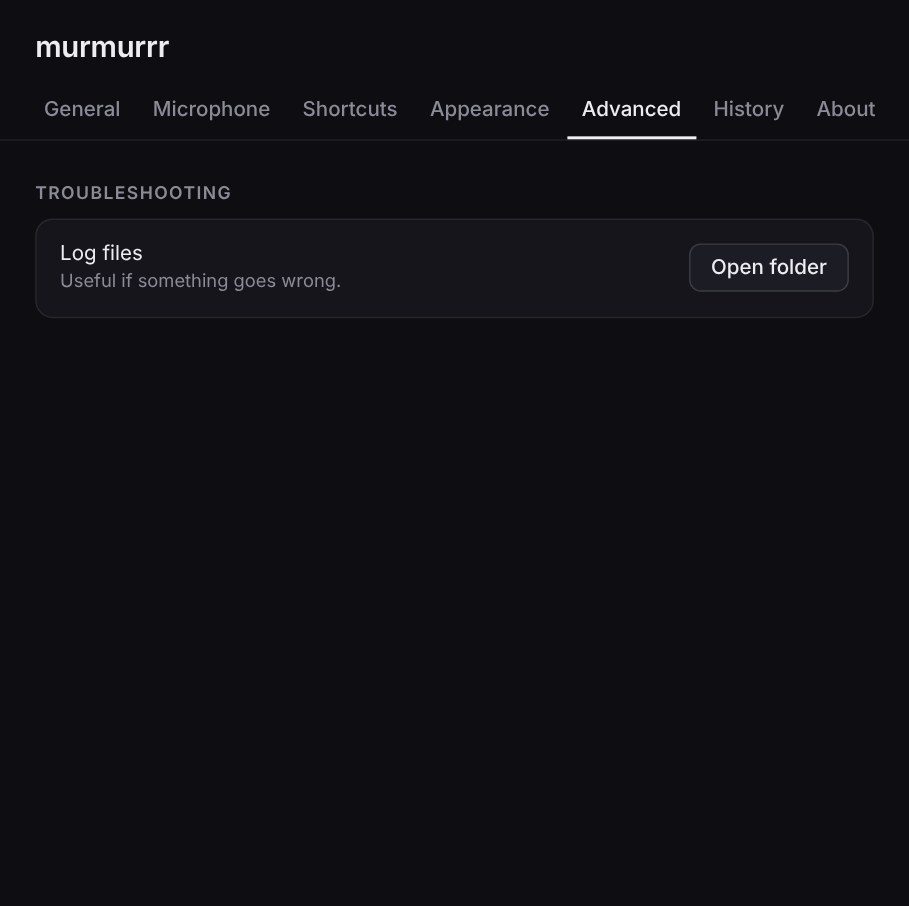
| Log files | Opens the folder with the logs. Useful if something goes wrong. They hold no dictated text. | Button |
History
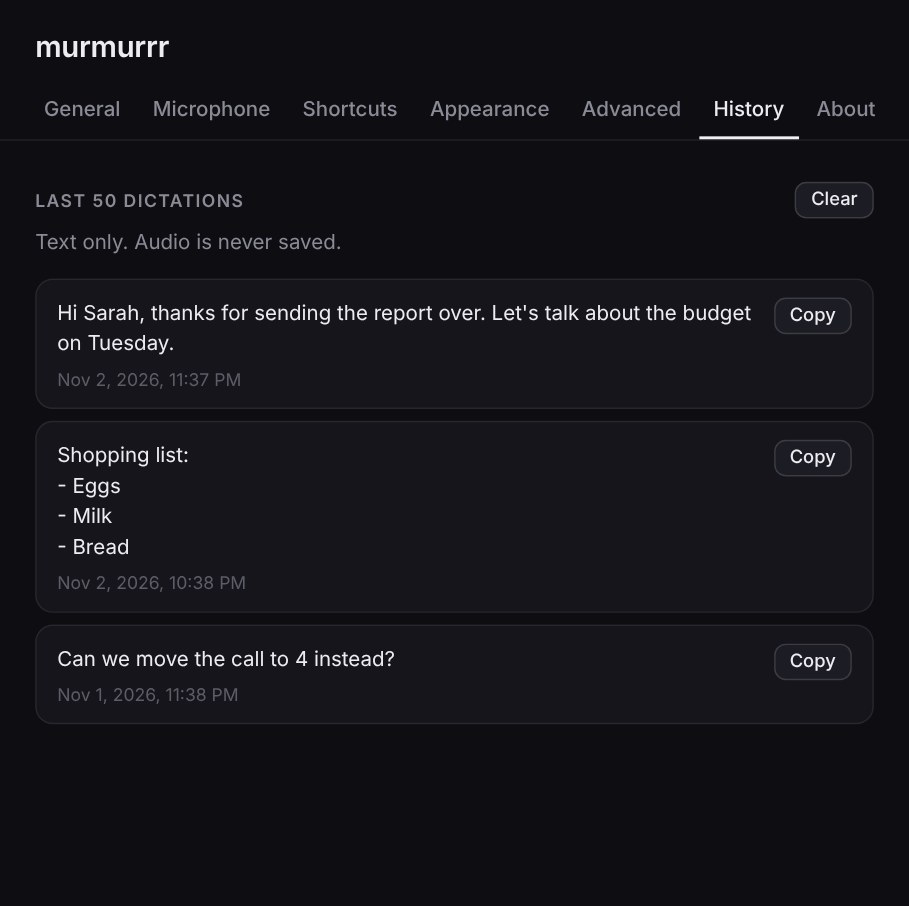
Your last 50 dictations. Text only. Audio is never saved. Each has a Copy button, and Clear removes them all. It's kept only on your computer.
About
| Setting | What it does | Default |
|---|---|---|
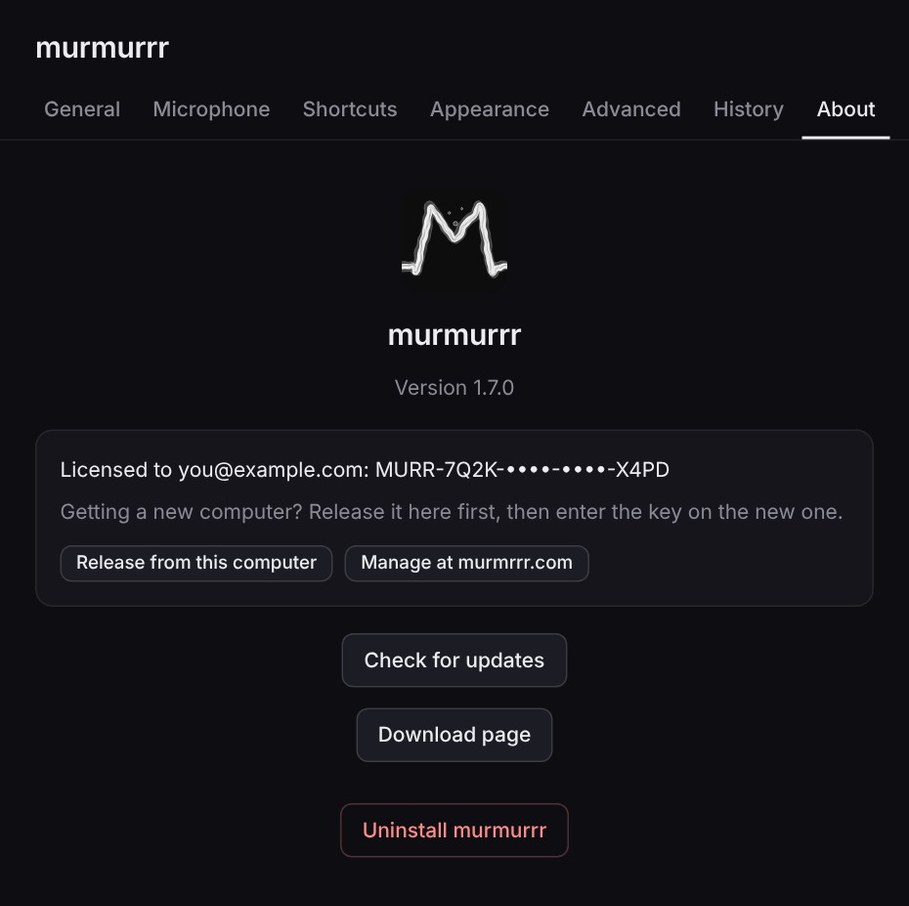
| Check for updates | Looks for a new version, and it also looks by itself every 4 hours. If there is one, it shows you what it fixes and adds, with a Download button. Nothing downloads until you press it. On Windows it then installs when your PC is idle, or when you restart it. On a Mac the button opens the download page. | Button |
| Download page | Opens murmrrr.com/download. | Button |
| Uninstall murmrrr | Asks first, then removes the app, the startup entry, the speech model, settings, history and logs. | Button |
Questions
Does it work offline?
Yes, once it's set up. You need the internet to download murmrrr, for the speech model on first launch, and to check for updates. With an NVIDIA card or an Apple chip, it also downloads the high-accuracy model in the background. Dictation itself never needs a connection.
Is my voice uploaded?
No. It's turned into text on your computer, and audio is never kept. If you're curious, the privacy page has the details.
Which apps does it type into?
Nearly anything with a text box: browsers, Word, email, chat apps, code editors, terminals. It pastes your words in with the clipboard, then puts your old clipboard back. If there's no text box, the bar offers to copy the text instead, and it stays in History.
Why can't it type into apps running as administrator on Windows?
Windows stops a normal app sending keystrokes to one running as administrator. murmrrr runs without admin rights, so its paste is blocked. Your text is still on the clipboard and in History, and you can paste it yourself.
Does it work without an NVIDIA card?
Yes. It runs on the processor instead, with a smaller, less accurate model (small.en). An 11 second clip takes a second or two on a good processor, against under a second on a graphics card, and a smaller processor will take longer. Apple chips get the high-accuracy model too.
The hotkey does nothing on my Mac
Usually macOS hasn't allowed murmrrr yet, which can happen again after an update. Open System Settings > Privacy & Security > Device Control and Data Access (called Accessibility on older macOS) and make sure murmrrr is switched on. If it already is, select it, click the minus button to remove it, then open murmrrr again and switch it on when macOS asks. The hotkey starts a couple of seconds later, with no restart.
How do I uninstall it?
Open settings, go to the About tab and click Uninstall murmrrr. It removes the app, the speech model, your settings, your history and the logs. On Windows, Settings > Apps > Installed apps does the same. Anything you've already typed in other apps stays where it is.